Sekilas Mikrotik

Mikrotik sekarang ini banyak digunakan oleh ISP, provider hotspot, ataupun oleh pemilik warnet. Mikrotik OS menjadikan computer menjadi router network yang handal yang dilengkapi dengan berbagai fitur dan tool, baik untuk jaringan kabel maupun wireless.
Dalam tutorial kali ini penulis menyajikan pembahasan dan petunjuk sederhana dan simple dalam mengkonfigurasi mikrotik untuk keperluan-keperluan tertentu dan umum yang biasa dibutuhkan untuk server/router warnet maupun jaringan lainya, konfirugasi tersebut misalnya, untuk NAT server, Bridging, BW manajemen, dan MRTG.
Versi mikrotik yang Saya gunakan untuk tutorial ini adalah MikroTik routeros 2.9.27
Akses mirotik:
Mikrotik router board ataupun PC dapat diakses langsung via console/ shell maupun remote akses menggunakan putty (www.putty.nl)
Mikrotik bisa juga diakses/remote menggunakan software tool winbox
Mikrotik juga dapat diakses via web/port 80 dengan menggunakan browser
Memberi nama Mirotik
[ropix@IATG-SOLO] > system identity print
name: "Mikrotik"
[ropix@IATG-SOLO] > system identity edit
value-name: name
masuk ke editor ketik misal saya ganti dengan nama IATG-SOLO:
IATG-SOLO
C-c quit C-o save&quit C-u undo C-k cut line C-y paste
Edit kemudian tekan Cltr-o untuk menyimpan dan keluar dari editor
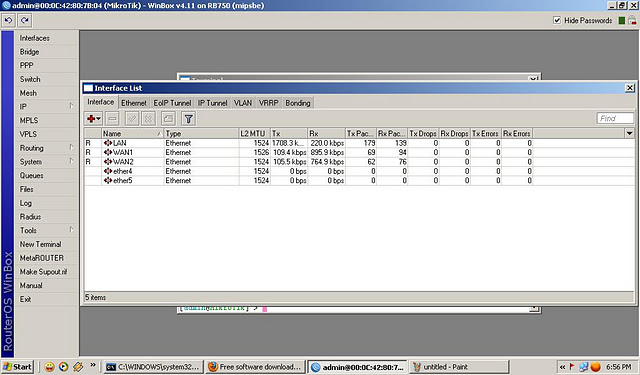
Kalo menggunakan winbox, tampilannya seperti ini:
Mengganti nama interface:
[ropix@IATG-SOLO] > /interface print
Flags: X - disabled, D - dynamic, R - running
# NAME TYPE RX-RATE TX-RATE MTU
0 R ether1 ether 0 0 1500
1 R ether2 ether 0 0 1500
[ropix@IATG-SOLO] > /interface edit 0
value-name: name
Nilai 0 adalah nilai ether1, jika ingin mengganti ethet2 nilai 0 diganti dengan 1.
masuk ke editor ketik missal saya ganti dengan nama local:
local
C-c quit C-o save&quit C-u undo C-k cut line C-y paste
Edit kemudian tekan Cltr-o untuk menyimpan dan keluar dari editor
Lakukan hal yang sama untuk interface ether 2, sehingga jika dilihat lagi akan muncul seperti ini:
[ropix@IATG-SOLO] > /interface print
Flags: X - disabled, D - dynamic, R - running
# NAME TYPE RX-RATE TX-RATE MTU
0 R local ether 0 0 1500
1 R public ether 0 0 1500
Via winbox:
Pilih menu interface, klik nama interface yg ingin di edit, sehingga muncul jendela edit interface.
Seting IP Address :
[ropix@IATG-SOLO] > /ip address add
address: 192.168.1.1/24
interface: local
[ropix@IATG-SOLO] > /ip address print
Flags: X - disabled, I - invalid, D - dynamic
# ADDRESS NETWORK BROADCAST INTERFACE
0 192.168.0.254/24 192.168.0.0 192.168.0.255 local
Masukkan IP addres value pada kolom address beserta netmask, masukkan nama interface yg ingin diberikan ip addressnya.Untuk Interface ke-2 yaitu interface public, caranya sama dengan diatas, sehingga jika dilihat lagi akan menjadi 2 interface:
[ropix@IATG-SOLO] > /ip address print
Flags: X - disabled, I - invalid, D - dynamic
# ADDRESS NETWORK BROADCAST INTERFACE
0 192.168.0.254/24 192.168.0.0 192.168.0.255 local
1 202.51.192.42/29 202.51.192.40 202.51.192.47 public
Via winbox:

Mikrotik Sebagai NAT
Network Address Translation atau yang lebih biasa disebut dengan NAT adalah suatu metode untuk menghubungkan lebih dari satu komputer ke jaringan internet dengan menggunakan satu alamat IP. Banyaknya penggunaan metode ini disebabkan karena ketersediaan alamat IP yang terbatas, kebutuhan akan keamanan (security), dan kemudahan serta fleksibilitas dalam administrasi jaringan.
Saat ini, protokol IP yang banyak digunakan adalah IP version 4 (IPv4). Dengan panjang alamat 4 bytes berarti terdapat 2 pangkat 32 = 4.294.967.296 alamat IP yang tersedia. Jumlah ini secara teoretis adalah jumlah komputer yang dapat langsung koneksi ke internet. Karena keterbatasan inilah sebagian besar ISP (Internet Service Provider) hanya akan mengalokasikan satu alamat untuk satu user dan alamat ini bersifat dinamik, dalam arti alamat IP yang diberikan akan berbeda setiap kali user melakukan koneksi ke internet. Hal ini akan menyulitkan untuk bisnis golongan menengah ke bawah. Di satu sisi mereka membutuhkan banyak komputer yang terkoneksi ke internet, akan tetapi di sisi lain hanya tersedia satu alamat IP yang berarti hanya ada satu komputer yang bisa terkoneksi ke internet. Hal ini bisa diatasi dengan metode NAT. Dengan NAT gateway yang dijalankan di salah satu komputer, satu alamat IP tersebut dapat dishare dengan beberapa komputer yang lain dan mereka bisa melakukan koneksi ke internet secara bersamaan.
Misal kita ingin menyembunyikan jaringan local/LAN 192.168.0.0/24 dibelakang satu IP address 202.51.192.42 yang diberikan oleh ISP, yang kita gunakan adalah fitur Mikrotik source network address translation (masquerading) . Masquerading akan merubah paket-paket data IP address asal dan port dari network 192.168.0.0/24 ke 202.51.192.42 untuk selanjutnya diteruskan ke jaringan internet global.
Untuk menggunakan masquerading, rule source NAT dengan action 'masquerade' harus ditambahkan pada konfigurasi firewall:
[ropix@IATG-SOLO] > /ip firewall nat add chain=srcnat action=masquerade out-interface=public
Kalo menggunakan winbox, akan terlihat seperti ini:


Mikrotik sebagai Transparent web proxy
Salah satu fungsi proxy adalah untuk menyimpan cache. Apabila sebuah LAN menggunakan proxy untuk berhubungan dengan Internet, maka yang dilakukan oleh browser ketika user mengakses sebuah url web server adalah mengambil request tersebut di proxy server. Sedangkan jika data belum terdapat di proxy server maka proxy mengambilkan langsung dari web server. Kemudian request tersebut disimpan di cache proxy. Selanjutnya jika ada client yang melakukan request ke url yang sama, akan diambilkan dari cache tersebut. Ini akan membuat akses ke Internet lebih cepat.
Bagaimana agar setiap pengguna dipastikan mengakses Internet melalu web proxy yang telah kita aktifkan? Untuk ini kita dapat menerapkan transparent proxy. Dengan transparent proxy, setiap Browser pada komputer yang menggunakan gateway ini secara otomatis melewati proxy.
Mengaktifkan fiture web proxy di mikrotik:
[ropix@IATG-SOLO] > /ip proxy set enabled=yes
[ropix@IATG-SOLO] > /ip web-proxy set
cache-administrator= ropix.fauzi@infoasia.net
[ropix@IATG-SOLO] > /ip web-proxy print
enabled: yes
src-address: 0.0.0.0
port: 3128
hostname: "IATG-SOLO"
transparent-proxy: yes
parent-proxy: 0.0.0.0:0
cache-administrator: "ropix.fauzi@infoasia.net"
max-object-size: 8192KiB
cache-drive: system
max-cache-size: unlimited
max-ram-cache-size: unlimited
status: running
reserved-for-cache: 4733952KiB
reserved-for-ram-cache: 2048KiB
Membuat rule untuk transparent proxy pada firewall NAT, tepatnya ada dibawah rule untuk NAT masquerading:
[ropix@IATG-SOLO] > /ip firewall nat add chain=dstnat in-interface=local src-address=192.168.0.0/24 protocol=tcp dst-port=80 action=redirect to-ports=3128
[ropix@IATG-SOLO] > /ip firewall nat print
Flags: X - disabled, I - invalid, D - dynamic
0 chain=srcnat out-interface=public action=masquerade
1 chain=dstnat in-interface=local src-address=192.168.0.0/24 protocol=tcp dst-port=80 action=redirect to-ports=3128
Pada winbox:
1. Aktifkan web proxy pada menu IP>Proxy>Access>Setting ( check box enable)

2. Setting parameter pada menu IP>Web Proxy>Access Setting>General
3. Membuat rule untuk transparent proxy pada menu IP>Firewall>NAT
Transparent proxy dengan proxy server
terpisah/independent
Web Proxy built in MikroTik menurut pengamatan saya kurang begitu bagus dibandingkan dengan proxy squid di linux, squid di linux lebih leluasa untuk dimodifikasi dan diconfigure, misalkan untuk feature delay-pool dan ACL list yang berupa file, belum ada di mikrotik seri 2.9.x.
Biasanya kebanyakan orang lebih suka membuat proxy server sendiri, dengan PC Linux/FreeBSD dan tinggal mengarahkan semua client ke PC tersebut.
Topologi PC proxy tersebut bisa dalam jaringan local ataupun menggunakan ip public.
Konfigurasinya hampir mirip dengan transparent proxy, bedanya adalah pada rule NAT actionnya yaitu sbb:
Dalam contoh diatas 192.168.0.100 adalah IP proxy server port 8080
Mikrotik sebagai bandwidth limiter
Mikrotik juga dapat digunakan untuk bandwidth limiter (queue) . Untuk mengontrol mekanisme alokasi data rate.
Secara umum ada 2 jenis manajemen bandwidth pada mikrotik, yaitu simple queue dan queue tree. Silahkan gunakan salah satu saja.
Tutorial berikutnya semua setting mikrotik menggunakan winbox, karena lebih user friendly dan efisien.
Simple queue:
Misal kita akan membatasi bandwidth client dengan ip 192.168.0.3 yaitu untuk upstream 64kbps dan downstream 128kbps
Setting pada menu Queues>Simple Queues
Queue tree
Klik menu ip>firewall>magle
Buat rule (klik tanda + merah) dengan parameter sbb:
Pada tab General:
Chain=forward,
Src.address=192.168.0.3 (atau ip yg ingin di limit)
Pada tab Action :
Action = mark connection,
New connection mark=client3-con (atau nama dari mark conection yg kita buat)
Klik Apply dan OK
Buat rule lagi dengan parameter sbb:
Pada tab General: Chain=forward,
Connection mark=client3-con (pilih dari dropdown menu)
Pada tab Action:
Action=mark packet,
New pcket Mark=client3 (atau nama packet mark yg kita buat)
Klik Apply dan OK
Klik menu Queues>Queues Tree
Buat rule (klik tanda + merah) dengan parameter sbb:
Pada tab General:
Name=client3-in (misal),
Parent=public (adalah interface yg arah keluar),
Paket Mark=client3 (pilih dari dropdown, sama yg kita buat pada magle),
Queue Type=default,
Priority=8,
Max limit=64k (untuk seting bandwith max download)
Klik aplly dan Ok
Buat rule lagi dengan parameter sbb:
Pada tab General:
Name=client3-up (misal),
Parent=local (adalah interface yg arah kedalam),
Paket Mark=client3 (pilih dari dropdown, sama yg kita buat pada magle),
Queue Type=default,
Priority=8,
Max limit=64k (untuk seting bandwith max upload)
Klik aplly dan Ok
Mikrotik sebagai Bridging
Bridge adalah suatu cara untuk menghubungkan dua segmen network terpisah bersama-sama dalam suatu protokol sendiri. Paket yang diforward berdasarkan alamat ethernet, bukan IP address (seperti halnya router). Karena forwarding paket dilaksanakan pada Layer 2, maka semua protokol dapat melalui sebuah bridge.
Jadi analoginya seperti ini, anda mempunyai sebuah jaringan local 192.168.0.0/24 gateway ke sebuah modem ADSL yg juga sebagai router dengan ip local 192.168.0.254 dan ip public 222.124.21.26.
Anda ingin membuat proxy server dan mikrotik sebagai BW management untuk seluruh client. Nah mau ditaruh dimanakan PC mikrotik tersebut? Diantara hub/switch dan gateway/modem? Bukankah nanti jadinya dia sebagai NAT dan kita harus menambahkan 1 blok io privat lagi yang berbeda dari gateway modem?
Solusinya mikrotik di set sebagai bridging, jadi seolah2 dia hanya menjembatani antar kabel UTP saja. Topologinya sbb:
Internet----------Moderm/router-----------Mikrotik--------Switch/Hub-----Client
Setting bridging menggunakan winbox
1. Menambahkan interface bridge
Klik menu Interface kemudian klik tanda + warna merah untuk menambahkan interface, pilih Bridge
memberi nama interface bridge, missal kita beri nama bridge1
2. menambahkan interface ether local dan public pada interface
Klik menu IP>Bridge>Ports , kemudian klik tanda + untuk menambahkan rule baru:
Buat 2 rules, untuk interface local dan public.
3. Memberi IP address untuk interface bridge
Klik menu IP kemudian klik tanda + untuk menambahkan IP suatu interface, missal 192.168.0.100, pilih interface bridge1 (atau nama interface bridge yang kita buat tadi)
Dengan memberikan IP Address pada interface bridge, maka mikrotik dapat di remote baik dari jaringan yg terhubung ke interface local ataupun public.
Mikrotik sebagai MRTG / Graphing
Graphing adalah tool pada mokrotik yang difungsikan untuk memantau perubahan parameter-parameter pada setiap waktu. Perubahan perubahan itu berupa grafik uptodate dan dapat diakses menggunakan browser.
Graphing dapat menampilkan informasi berupa:
* Resource usage (CPU, Memory and Disk usage)
* Traffic yang melewati interfaces
* Traffic yang melewati simple queues
Mengaktifkan fungsi graping
Klik menu Tool >Graphing>Resource Rules
Adalah mengaktifkan graphing untuk resource usage Mikrotik. Sedangkana allow address adalah IP mana saja yang boleh mengakses grafik tersebu,. 0.0.0.0/0 untuk semua ip address.
Klik menu Tool>Graphing>Interface Rules
Adalah mengaktifkan graphing untuk monitoring traffic yang melewati interface, silahkan pilih interface yg mana yang ingin dipantau, atau pilih “all” untuk semua.
Graphing terdiri atas dua bagian, pertama mengumpulkan informasi/ data yang kedua menampilkanya dalam format web. Untuk mengakses graphics, ketik URL dengan format http://[Router_IP_address]/graphs/ dan pilih dari menu-menu yang ada, grafik mana yang ingin ditampilkan.
Contoh hasil grafik untuk traffic interface public:
Demikian, tutorial yang sedikitpenulis sampaikan untuk sekedar membagi ilmu atau menyederhanakan untukmemudahkan pemahaman dari tutorial yang sudah tersedia di situs resmi mikrotik.
Source : indonesiacyber